pdfToolbox
pdfToolbox offers powerful, dynamic and easy to integrate PDF processing, from quick visual inspection and fixing to fully unattended processing of thousands of files. Using rock-solid Adobe tec...

pdfChip
pdfChip is a command-line application for the creation of high-quality PDF from HTML (taking full advantage of CSS and JavaScript). It supports all HTML features, but extends to support CMYK, sp...

pdfaPilot
pdfaPilot is the solution for conversion of PDF or native documents and emails into robust, searchable PDF or PDF/A files for long-term archiving. It uses the same rock-solid PDF/A technology as...

License Server
License Server introduces a dynamic way of licensing processing capacity based on peak performance. This type of licensing will allow callas products to run without being activated locally, rath...

pdfGoHTML
pdfGoHTML substantially speeds up the creation and evaluation of tagged PDFs, and ensures a much higher degree of usability of tagged PDF files. One simple click on the plug-in button converts t...

pdfDPartner
callas pdfDPartner is a free Acrobat plugin provided by callas software that allows for viewing DPart metadata as may present in PDF documents.


Newsletter
No strings attached. Unsubscribe anytime. For further details, review our Privacy Policy.
Upcoming Events
drupa
Come visit us at drupa '24 in Düsseldorf in Hall 7 in booth F06. Beat the crowd! Book your meeting slot below and skip the line.
callas pdfCamp '24 Spring edition
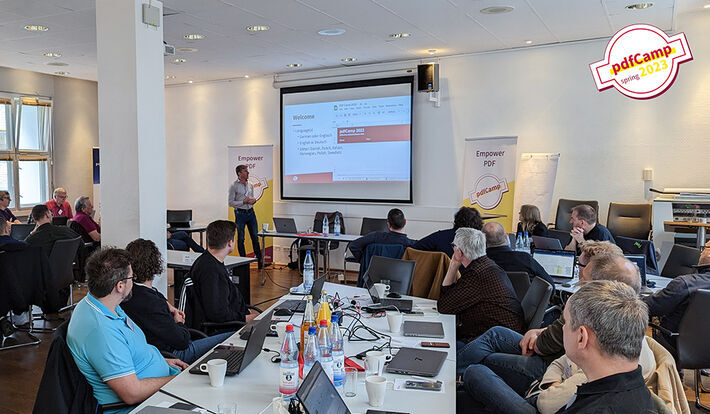
callas software organises a new pdfCamp in the spring of 2024! The spring edition of the pdfCamp will be held on April 18 and 19, 2024 in Berlin. This event offers a unique opportunity for the attend...